
Many advertisers face significant friction during Google Ads account setup, often experiencing 1-2 week verification delays that halt campaign launches and revenue generation. This Google Ads account management guide cuts through that complexity, providing actionable strategies from initial setup to final deactivation. We’ll cover essential topics like navigating user permissions, leveraging Manager Accounts for efficiency, optimizing billing, and mastering campaign controls, ensuring your Google Ads account operates at peak performance.
Initial Google Ads Account Setup: From Registration to Launch
Google Ads account setup begins with a straightforward registration process that establishes your advertising entity. This process defines your advertising presence, impacting future billing, access, and compliance. I’ve seen many new advertisers get stuck here due to verification delays, often taking 1-2 weeks before campaigns can even begin.
To set up your Google Ads account, follow these critical steps:
1. Visit Google Ads: Navigate to ads.google.com and click “Start now.”
2. Google Account Link: Use an existing Google Account or create a new one. This account will be the primary administrator.
3. Initial Campaign Creation (Optional but Recommended): Google often prompts you to create your first campaign. While you can skip this, running a basic campaign helps activate the account faster. Focus on a simple Search campaign with a few keywords and a clear ad.
4. Business Information: Accurately enter your business name, address, and time zone. These details are crucial for billing and compliance. Inaccurate information can lead to account suspension.
5. Billing Setup: Provide a valid payment method. This is where many new accounts face initial spending limits until Google establishes trust.
Advertisers using a verified agency ad account from AdShift can bypass the typical 2-week verification delay, starting campaigns immediately and avoiding initial spending limits often imposed on new accounts. This accelerates your time to market significantly.
Once your Google Ads account is established, understanding its various access levels becomes critical for team collaboration and security.

Navigating Google Ads Account Access Levels: User Permissions Explained
Google Ads account access levels dictate what actions users can perform within an account. These permissions ensure security and operational efficiency, preventing unauthorized changes that could disrupt campaigns. Misconfigured access can lead to critical campaign errors or data breaches, as a client recently experienced when a junior team member accidentally paused a top-performing campaign for several hours, resulting in a 15% drop in daily leads.
Google Ads offers four primary access levels:
* Admin: Full control over the account, including managing users, billing, and all campaign settings. Only trusted individuals should have this level.
* Standard: Can manage campaigns, ad groups, ads, and keywords. They cannot manage user access or billing profiles. Ideal for campaign managers.
* Billing: Can view and manage billing information, payment methods, and invoices. They cannot manage campaigns. Suitable for finance departments.
* Read-Only: Can view all campaign data and reports but cannot make any changes. Perfect for stakeholders who need to monitor performance without intervention.
Carefully assigning these roles minimizes risk and streamlines workflows. For instance, a campaign manager needs Standard access, while a client only requires Read-Only access for reporting.
Managing individual access is one thing, but for agencies or businesses with multiple brands, a unified management solution is essential.

Mastering Multiple Google Ads Account Management with MCC
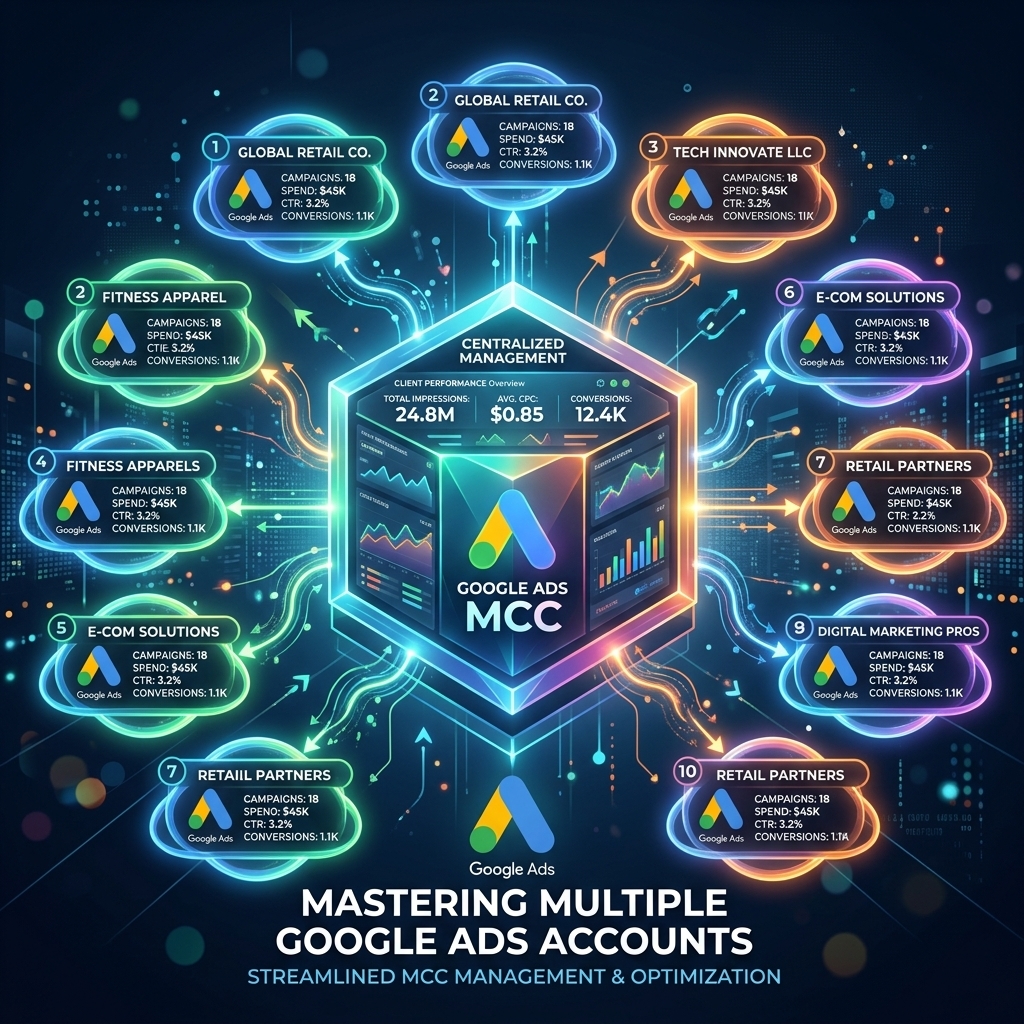
Multiple Google Ads account management is streamlined through a Manager Account (MCC), also known as a Google Ads Manager Account. An MCC provides a centralized dashboard for overseeing numerous client or brand accounts, drastically improving efficiency. Our campaigns show that agencies leveraging MCCs reduce administrative overhead by up to 30% compared to managing individual logins for each account.
An MCC allows you to:
* Access All Accounts: Log in once to view and manage all linked client accounts.
* Centralized Billing: Consolidate billing for multiple accounts under a single invoice (if eligible).
* Performance Monitoring: Get a high-level overview of performance across all accounts from a single dashboard.
* User Management: Manage user access for all linked accounts from the MCC level.
To set up an MCC, you register for a separate Google Ads Manager Account and then link existing or new Google Ads accounts to it. This is particularly beneficial for those who rent agency ad accounts, as these often come pre-configured within a robust MCC structure, ready for immediate use. An agency ad account simplifies the initial setup and often provides immediate access to higher spending limits and specialized support.
With accounts structured and access defined, the next critical component is managing the financial aspects of your advertising.
Optimizing Google Ads Billing & Payment Methods
Google Ads billing and payment methods are foundational to uninterrupted campaign performance. Proper billing setup ensures your ads run continuously, avoiding pauses due to payment issues. I’ve seen campaigns go dark for days because of expired credit cards or incorrect invoicing details, costing advertisers significant revenue and a recent client over $5,000 in lost sales during a critical holiday period.
Google Ads primarily offers two payment settings:
* Automatic Payments: Your ads run continuously, and Google automatically charges your primary payment method (credit card or bank account) after your ads accrue costs or reach a predetermined threshold. This is the most common method.
* Manual Payments: You pre-pay for your advertising by adding funds to your Google Ads account. Your ads run until your balance runs out. This method requires constant monitoring to avoid ad pauses.
For larger advertisers or agencies, monthly invoicing might be available. This option allows you to receive a monthly invoice and pay within a specified timeframe, often 30 days. Eligibility typically requires a strong payment history and minimum spending thresholds.
When you rent a verified Google Ads account, the billing setup is often pre-vetted, reducing initial friction and ensuring a stable payment profile from day one. This also helps in bypassing common payment issues associated with new accounts.
Beyond financial settings, effectively managing who has access to these critical billing functions is part of broader user management.

Strategic Google Ads User Management: Adding & Removing Access
Strategic Google Ads user management involves adding, modifying, and removing user access efficiently to maintain account security and operational integrity. This ensures that only authorized personnel can interact with campaigns and sensitive data. For example, a recent audit revealed that several former employees still had access to client accounts, posing a significant security risk until their permissions were revoked.
To manage users within your Google Ads account:
1. Access Settings: Click the ‘Tools and Settings’ icon (wrench) in the top right corner, then navigate to ‘Setup’ > ‘Account access’.
2. Invite New Users: Click the blue ‘+’ button, enter the user’s email address, and select the appropriate access level (Admin, Standard, Billing, Read-Only). An invitation will be sent to their email.
3. Accept Invitation: The invited user must accept the invitation from their email.
4. Edit Existing Access: You can change a user’s access level at any time by clicking the ‘Access level’ dropdown next to their name.
5. Remove Users: To remove a user, click the ‘Remove access’ button next to their name.
Regularly reviewing your account access list, especially during team changes or offboarding, is a crucial best practice. This proactive approach safeguards your advertising budget and proprietary campaign data.
Once your team is set up and campaigns are running, knowing how to temporarily halt or completely stop advertising efforts is a crucial management skill.

Pausing & Stopping Google Ads Campaigns Effectively
Pausing and stopping Google Ads campaigns effectively requires understanding the difference between campaign-level and account-level actions. This distinction prevents unintended ad spend or the complete cessation of all advertising efforts. I’ve witnessed businesses accidentally pause their entire account when they only intended to stop a single underperforming campaign, leading to a 20% decline in website traffic over a weekend.
- Pausing a Campaign: This temporarily halts all ads within a specific campaign.
- How: Navigate to ‘Campaigns’ in the left-hand menu, select the campaign(s) you wish to pause, and click the ‘Pause’ icon in the toolbar above the table.
- When: Use this for seasonal promotions, budget reallocations, or testing periods when you don’t want to permanently remove the campaign.
- Pausing an Ad Group: Similar to campaigns, this stops ads within a particular ad group.
- How: Navigate to ‘Ad groups’ within a campaign, select the ad group(s), and click the ‘Pause’ icon.
- When: Useful for A/B testing ad creatives or keywords within a campaign without affecting other ad groups.
- Stopping/Pausing the Entire Account: This is a more drastic measure that stops all active campaigns, ad groups, and ads across your entire Google Ads account.
- How: This is typically done through the ‘Account status’ settings under ‘Setup’ > ‘Preferences’. You can ‘Cancel my account’ which essentially pauses everything.
- When: Use this for extended breaks, a complete re-evaluation of your advertising strategy, or before permanently closing the account.
For a deeper dive into campaign structure and Google Ads fundamentals, refer to our comprehensive guide on Google Ads fundamentals. Always confirm the scope of your action to avoid unintended consequences.
While pausing is temporary, sometimes a complete termination of an advertising presence is necessary, leading to the process of closing an account.

Closing or Deactivating Your Google Ads Account
Closing or deactivating your Google Ads account is a final step when advertising services are no longer required. This process ensures all campaigns are stopped, billing ceases, and personal data is handled appropriately. Improper account closure can lead to lingering charges or unresolved billing issues, as one past client discovered a year later when they received an unexpected invoice for $300.
To close your Google Ads account:
1. Cancel Account: Navigate to ‘Tools and Settings’ (wrench icon) > ‘Setup’ > ‘Preferences’ > ‘Account status’. Click ‘Cancel my account’.
2. Confirm Cancellation: Google will prompt you to confirm.
3. Refund Process: If you have a remaining credit balance in your account, Google will automatically process a refund to your payment method within a few weeks.
4. Data Retention: Google retains account data for a period, even after closure, for compliance and analytical purposes. You can still access historical data by logging in.
Remember that closing an account is irreversible for active campaigns and billing. Ensure all campaigns are paused and any outstanding balances are settled before proceeding. If you intend to resume advertising in the future, pausing campaigns is generally a better option than full account closure.

FAQ
How long does it typically take to set up a new Google Ads account?
Setting up a new Google Ads account involves registration and a verification process that can typically take 1-2 weeks. This delay can impact campaign launch schedules and initial spending limits. Using a pre-verified agency ad account can help bypass these initial delays, allowing immediate campaign activation.
What are the primary access levels in a Google Ads account?
Google Ads accounts offer four main access levels: Admin, Standard, Billing, and Read-Only. Admin users have full control, Standard users can manage campaigns but not user access, Billing users manage payment profiles, and Read-Only users can view data without making changes. Proper assignment of these roles is crucial for security and operational efficiency.
What is a Google Ads Manager Account (MCC) and why is it important?
A Google Ads Manager Account (MCC) is a centralized dashboard designed for agencies or businesses managing multiple Google Ads accounts. It allows for single login access to oversee various client or brand accounts, simplifying reporting, billing, and overall management. MCCs can reduce administrative overhead by up to 30% for multi-account management.
Can I use invoicing for Google Ads payments?
Yes, Google Ads offers invoicing as a payment method, typically for qualified advertisers with established spending history and creditworthiness. Most advertisers start with automatic payments via credit card or bank account. Invoicing provides greater flexibility for larger organizations or agencies managing substantial ad spend.
What’s the difference between pausing a Google Ads campaign and pausing the entire account?
Pausing a Google Ads campaign temporarily stops ads within that specific campaign, useful for budget adjustments or seasonal breaks. Pausing the entire Google Ads account, halts all active campaigns, ad groups, and ads across the entire account. This is a more drastic measure typically used for extended breaks or before closing an account. Always ensure you select the correct level to avoid unintended consequences.
Conclusion
Effective Google Ads account management is not just about launching campaigns; it’s about navigating the entire lifecycle from initial setup and user access to billing, optimization, and eventual deactivation. By understanding the nuances of access levels, leveraging MCCs for efficiency, and strategically managing your billing and campaign status, you can ensure your advertising efforts are both secure and highly effective. Proactive management minimizes risks, maximizes ad spend, and positions your campaigns for consistent success.
Ready to streamline your Google Ads operations and bypass common setup hurdles? Rent a verified Google Ads agency account from AdShift and gain immediate access to a robust, pre-configured advertising environment.