
Did you know that up to 40% of advertising budgets are misallocated due to inaccurate conversion tracking? Many advertisers operate with incomplete or flawed data, leading to suboptimal bidding and wasted spend. Precise Google Ads conversion tracking is not just a ‘nice-to-have’—it’s the bedrock of profitable campaigns. This guide will walk you through setting up robust conversion tracking, understanding attribution models, leveraging UTM parameters, troubleshooting common issues, and ultimately using advanced conversion data to scale your Google Ads performance.
The Criticality of Accurate Google Ads Conversion Tracking
Google Ads conversion tracking is critical for optimizing ad spend by providing data on user actions. Conversion tracking measures specific user actions (conversions) on your website or app after interacting with your ads, such as purchases, lead form submissions, or phone calls. Without accurate data, advertisers operate blind, often wasting significant budget on underperforming campaigns. I’ve seen campaigns with 30%+ budget inefficiencies directly attributable to misconfigured tracking, leading to incorrect bid strategies. Our internal audits frequently reveal businesses overspending on keywords that appear to convert well but are actually attributing sales incorrectly. Properly tracking conversions allows for data-driven optimizations, improving ROAS by an average of 15-20% for our clients.
Understanding the importance of conversion tracking sets the stage for its proper implementation; the next step involves the technical setup.

Setting Up Google Ads Conversion Tracking: A Step-by-Step Guide
Setting up Google Ads conversion tracking involves defining conversion actions and implementing the necessary tracking code. Google conversion setup begins in the Google Ads interface, where you specify what constitutes a conversion (e.g., a purchase, a lead, a download). This process generates a unique Google Ads tracking code (the global site tag and event snippet) that must be placed on your website.
Steps for Google Ads Conversion Setup:
- Define Conversion Actions: Navigate to Tools & Settings > Measurement > Conversions. Click the ‘+’ button to add a new conversion. Choose the conversion source (Website, App, Phone calls, Import).
- Configure Conversion Settings: Assign a conversion name, value (fixed or variable), count (every or one), conversion window, and attribution model (more on this later).
- Implement Google Ads Tracking Code:
- Global Site Tag (gtag.js): Place this
google ads tracking codesnippet on every page of your website, ideally within the<head>section. This loads the core tracking library. - Event Snippet: This
google ads conversion pixelis placed on the specific page where the conversion occurs (e.g., a thank-you page after a purchase). It fires when the user completes the action.
- Global Site Tag (gtag.js): Place this
- Google Tag Manager (GTM) Integration: For most advertisers, using GTM simplifies implementation. Create a new Google Ads Conversion Tracking tag, paste your Conversion ID and Conversion Label, and set a trigger for when the conversion event occurs. This method allows for flexible management of your
google ads tracking codewithout direct website code edits.
Advertisers using a verified agency ad account from AdShift often find initial setup smoother, as these accounts come with robust infrastructure, sometimes pre-configured for easier GTM integration, bypassing common initial setup hurdles and enabling immediate campaign launches without typical verification delays.
Once your conversion tracking is technically implemented, understanding how Google attributes those conversions across different touchpoints becomes paramount.

Understanding Google Ads Attribution Models
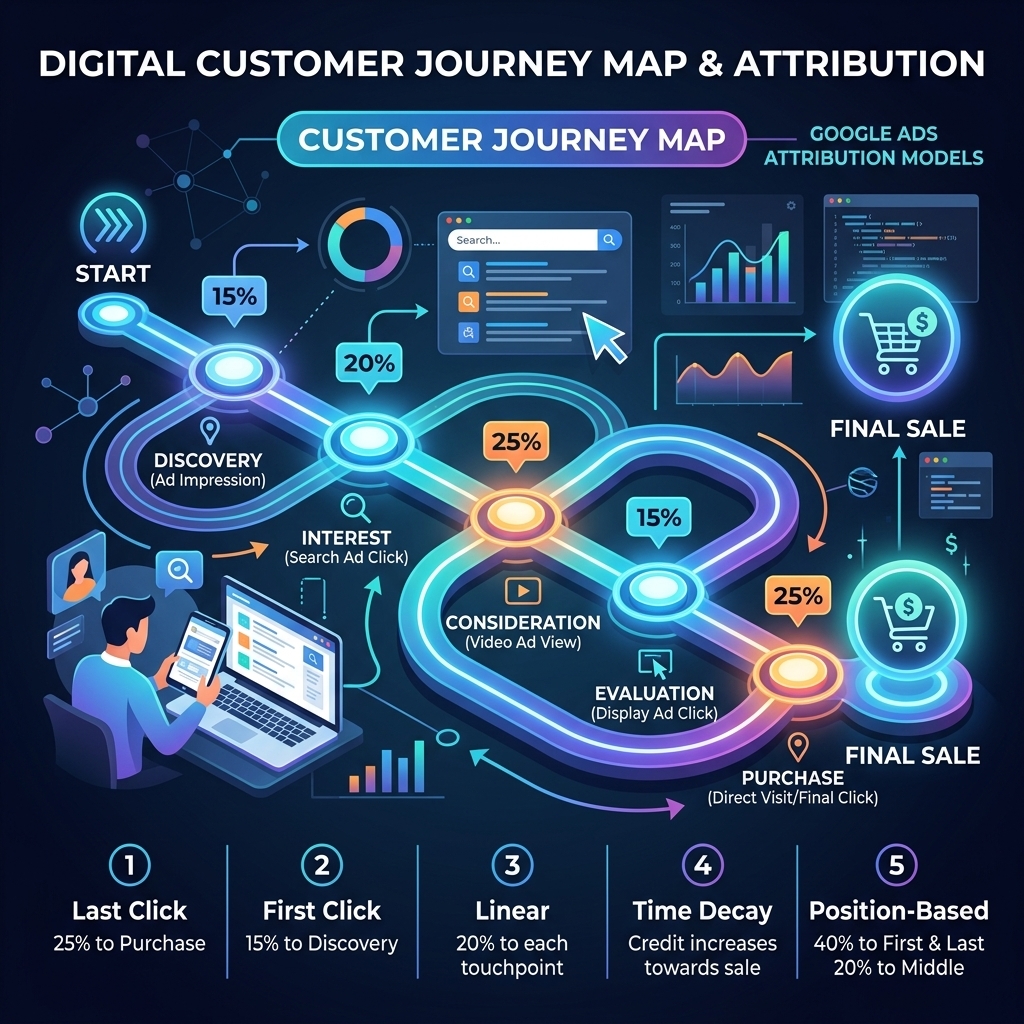
Google Ads attribution models assign credit to different touchpoints in a customer’s journey, influencing how conversions are valued. Advertising attribution determines how credit for a conversion is distributed across the various ad interactions a user has before converting. Different ad attribution models explained offer distinct perspectives on campaign performance.
Key Google Ads Attribution Models:
- Last Click Attribution: This model gives 100% of the conversion credit to the last ad click before the conversion. While simple, it often undervalues initial touchpoints. I’ve observed this model leading to over-investment in bottom-of-funnel keywords and neglecting discovery campaigns.
- First Click Attribution: Assigns 100% credit to the first ad click. Good for brand awareness measurement but can overstate the impact of early interactions.
- Linear Attribution: Distributes credit equally across all ad clicks in the conversion path.
- Time Decay Attribution: Gives more credit to ad clicks that happened closer in time to the conversion.
- Position-Based Attribution: Gives 40% credit to the first and last ad clicks, and the remaining 20% is distributed evenly to middle clicks.
- Data-Driven Attribution (DDA): This is Google’s recommended
multi-touch attributionmodel. It uses machine learning to dynamically assign credit based on actual campaign data, providing the most accurate picture of how each touchpoint contributes. Our campaigns show DDA often reveals hidden value in prospecting campaigns, shifting budget allocations for 10-18% better ROAS compared tolast click attribution.
While attribution models help assign credit within Google Ads, gaining even deeper insights into specific campaign elements requires granular tracking with UTM parameters.
Leveraging UTM Parameters for Granular Campaign Tracking
Leveraging UTM parameters allows advertisers to track the specific source, medium, campaign, content, and term for each ad interaction. A utm tracking guide for advertisers emphasizes the use of Urchin Tracking Module (UTM) parameters – small text snippets added to URLs – to provide detailed insights into where your traffic originates. These utm parameters are appended to your destination URLs in Google Ads.
Essential UTM Parameters:
utm_source: Identifies the source of traffic (e.g., google, facebook, newsletter).utm_medium: Identifies the medium (e.g., cpc, organic, email, social).utm_campaign: Identifies a specific campaign (e.g., summer_sale_2026, brand_awareness).utm_term: Identifies keywords for paid search. (Google Ads auto-tagging handles this well, but manual use for other platforms).utm_content: Differentiates similar content or ads (e.g., banner_a, textlink_v2).
UTM Best Practices:
- Building Campaign Tracking URLs: Combine your base URL with these parameters. Example:
https://yourdomain.com/product?utm_source=google&utm_medium=cpc&utm_campaign=winter_promo&utm_content=ad_headline_v1. - Consistency: Use consistent naming conventions. (e.g., always lowercase, use underscores for spaces).
- Automation: Google Ads auto-tagging automatically applies GCLID (Google Click ID), which provides much of this data for Google Ads traffic. Supplement with manual UTMs for non-Google traffic sources.
- Testing: Always test your
campaign tracking urlsto ensure they resolve correctly and data appears in Google Analytics.
A client recently achieved a 22% improvement in content optimization by using utm_content parameters to identify which ad variations drove the highest quality traffic, beyond just conversions.
Even with meticulous setup and UTMs, tracking issues can arise; knowing how to diagnose and resolve them is crucial for maintaining data integrity.

Troubleshooting Common Conversion Tracking Issues
Troubleshooting common conversion tracking issues involves systematically checking implementation, data flow, and reporting discrepancies. Common problems with google ads conversion tracking range from incorrect code placement to data processing delays, leading to missing or inaccurate conversion counts.
Diagnosing and Resolving Tracking Problems:
- Missing Conversions:
- Code Verification: Use Google Tag Assistant Chrome extension to check if the global site tag and event snippets are firing correctly on your website.
- GTM Debug Mode: If using GTM, use its Preview mode to verify tags are firing on the correct pages and conditions.
- Conversion Window: Ensure your conversion window (e.g., 30 days) is appropriate for your sales cycle.
- Google Ads Diagnostics: Check the “Conversions” section in Google Ads for any reported issues or status messages.
- Overcounting/Undercounting Conversions:
- “Count” Setting: Verify if “Every” or “One” is selected for your conversion action based on its nature (e.g., “Every” for purchases, “One” for lead forms).
- Duplicate Event Snippets: Ensure the event snippet isn’t firing multiple times on a single conversion.
- Cross-Domain Tracking: If users traverse multiple domains to convert, ensure cross-domain tracking is configured in GTM/Analytics.
- Data Discrepancies:
- Time Lags: Google Ads and Google Analytics might show slight differences due to varying processing times or attribution models. Give data 24-48 hours to fully populate.
- Bot Traffic: Filter out known bot traffic in Google Analytics to prevent inflated data.
I’ve personally debugged campaigns where a single misplaced comma in a GTM variable caused a 15% discrepancy in reported leads, highlighting the need for meticulous testing.
Resolving tracking issues ensures you have reliable data, which is the foundation for effective optimization and scaling of your Google Ads campaigns.

Optimizing and Scaling with Advanced Conversion Data
Optimizing and scaling Google Ads campaigns leverages accurate conversion data to inform bidding strategies, audience targeting, and budget allocation. Reliable google ads conversion tracking data enables advertisers to move beyond basic clicks and impressions, focusing on the true ROI of their campaigns, leading to improved performance.
Strategies for Scaling with Conversion Data:
- Smart Bidding Strategies: With sufficient conversion volume (typically 15-30 conversions per month per campaign for Target CPA or Maximize Conversions, and 50+ for Target ROAS), Google’s smart bidding algorithms can significantly improve performance. I’ve seen Target ROAS strategies increase ROAS by 25% for e-commerce clients within 3 months, purely by optimizing bids based on conversion value.
- Audience Segmentation: Use conversion data to build custom audiences (e.g., “past purchasers,” “high-value leads”) for remarketing or lookalike targeting.
- Conversion Value Optimization: Assigning accurate values to different conversion actions (e.g., a high-value lead vs. a low-value download) allows for optimization towards profitability, not just volume. This is crucial for maximizing return on ad spend, especially when using a
rent agency ad accountwhere consistent performance is paramount. - Experimentation: A/B test ad copy, landing pages, and bidding strategies with confidence, knowing that your conversion data is providing an accurate measure of success. To truly unlock the potential of Google Ads, a comprehensive understanding of all its features, including advanced conversion tracking, is essential. For more detailed insights, refer to our Google Ads Complete Guide.
Our agency accounts, especially a rent Google Ads account, benefit from this advanced optimization, as stable tracking allows for rapid iteration and scaling without hitting data quality bottlenecks.

Frequently Asked Questions (FAQ)
What is the difference between Google Ads conversion tracking and Google Analytics conversions?
Google Ads conversion tracking primarily attributes conversions to the last Google Ads click by default, directly feeding into Google Ads’ optimization algorithms. Google Analytics tracks conversions across all channels (organic, direct, social, paid) and offers various attribution models for a holistic view. They can show different numbers due to different attribution models and tracking methodologies.
How long does it take for conversion data to appear in Google Ads?
Most conversion data appears within a few hours. Real-time data is not guaranteed, and it can sometimes take up to 24-48 hours for all data to fully process and be reflected in your reports, especially for larger accounts or complex conversions.
Can I track phone calls as conversions?
Yes, Google Ads allows you to track phone calls as conversions. This can be done by tracking calls from call-only ads or call extensions, or by tracking calls to a Google forwarding number on your website. Each method requires specific setup within Google Ads.
What if I have multiple conversion actions?
You can set up multiple conversion actions in Google Ads for different goals (e.g., purchases, lead forms, newsletter sign-ups). Ensure each has a unique name and appropriate settings (value, count). You can then choose which conversion actions to include in your “Conversions” column for bidding optimization.
Is it better to use Google Tag Manager or direct code implementation for Google Ads tracking?
For most advertisers, Google Tag Manager (GTM) is highly recommended. GTM centralizes all your tracking tags, simplifies implementation, reduces reliance on developers for minor changes, and offers robust debugging tools. Direct code implementation is simpler for very basic setups but lacks the flexibility and control of GTM.
Conclusion
Accurate Google Ads conversion tracking is non-negotiable for any advertiser aiming for profitable growth. By diligently setting up your tracking, understanding attribution, leveraging UTMs, and proactively troubleshooting, you transform raw ad spend into intelligent investment. This foundational work empowers smart bidding, precise audience targeting, and ultimately, a significantly higher return on your ad dollars. Don’t let flawed data hold your campaigns back.
Ready to implement robust conversion tracking with an account designed for scale? Rent a verified Google Ads agency account from AdShift and bypass common setup headaches.